
Android Control Pad Support
Product Documentation
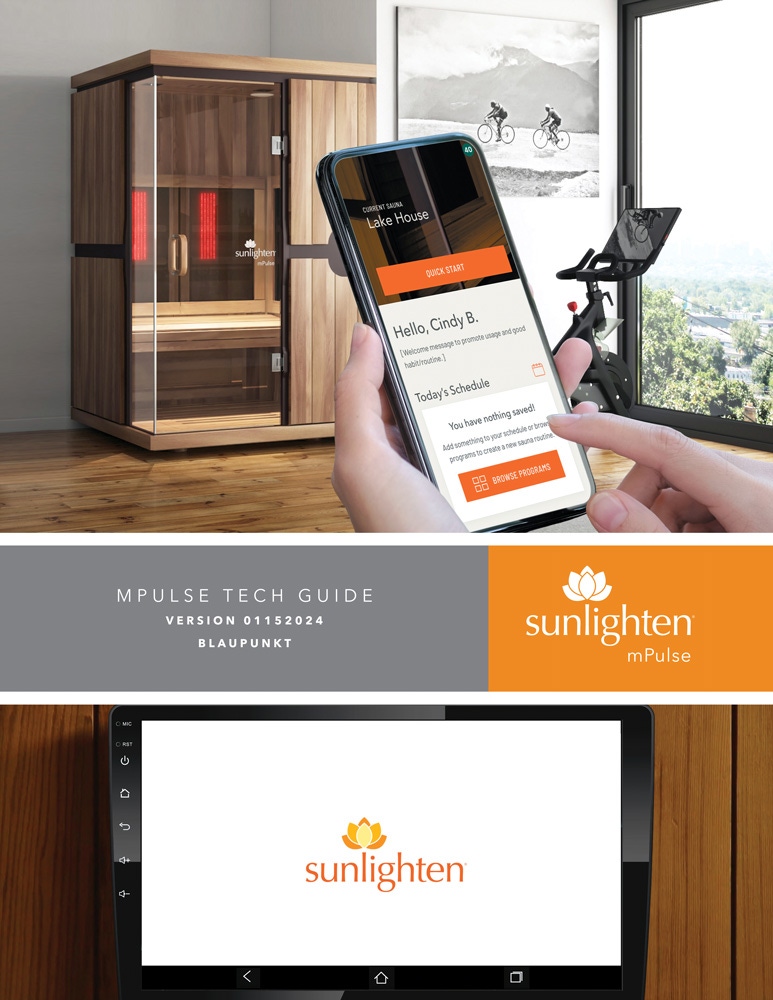
Product Documentation
Sauna Android Control Pad:
Helpful Videos
Watch how to replace your android control pad for your mPulse sauna.
Frequently Asked Questions
Connecting your touchscreen to Wi-Fi allows you to receive software updates and access connected features.
- Open Settings on your touchscreen.
- Navigate to the Wi-Fi settings.
- Select your home Wi-Fi network.
- Enter your password and connect.
Software updates help keep your mPulse touchscreen running smoothly by providing performance improvements, bug fixes, and compatibility updates.
We recommend installing available updates to ensure you have the latest improvements and features.
When an update is available, simply follow the instructions provided on your touchscreen.
Enjoy your favorite shows and videos during your sauna session! Your mPulse touchscreen includes popular streaming apps such as:
- YouTube
- YouTube TV
- Netflix
- Hulu
- Prime Video
Available apps and functionality may vary by touchscreen model, software version, and region.
Yes, you can dim the screen or put the display to sleep without affecting your sauna's operation.
- To turn off the display: Briefly press the power button. Press it again to wake the screen.
- To adjust brightness: Swipe down from the top of the screen to open the Quick Settings menu, then use the brightness slider to adjust the display.
Note: Steps may vary slightly depending on your touchscreen model.
Tap the light bulb icon on your touchscreen to turn the interior and exterior lights on or off.
For chromotherapy lighting, turn on the interior lights, then use the included remote to select your preferred color.
Yes! Enjoy music, podcasts, meditations, and more through your sauna's built-in speakers. Play audio directly from compatible apps on your touchscreen or connect your phone via Bluetooth.
To connect your phone:
- Turn on Bluetooth on your phone.
- Select SUNLIGHTEN from the list of available devices.
- Follow the prompts to pair. No pairing code is needed.
Once connected, the Bluetooth icon on your touchscreen turns blue. You can now play audio through your sauna's speakers.
Having trouble? Make sure Bluetooth is enabled on both devices. If needed, forget SUNLIGHTEN on your phone and pair again.