
Support de Clavier de Commande Android
Product Documentation
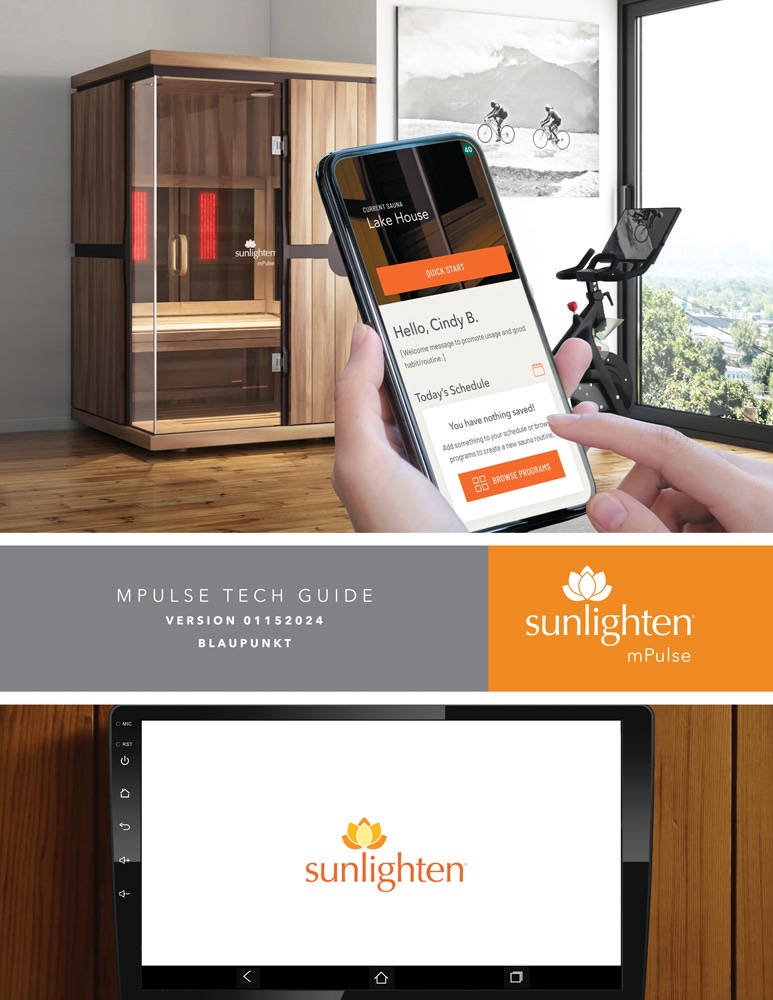
Product Documentation
Panneau de Commande Sauna Android:
Helpful Videos
Watch how to replace your android control pad for your mPulse sauna.
Frequently Asked Questions
For Android 6 tablets: Android Control Pads in saunas from 2018 and later will receive the Over the Air push prompt. Your ACP will need to have software version 2.20.610 or after to perform that update. The version number can be found on Settings/Setup and looking in the top right portion of that screen.
For Android 10 tablets: You can update the app by navigating to the Google Play Store, search for the Sunlighten app and then update. Or reboot your tablet to see the pop-up prompt requesting the update.
Some third party apps are dependent on Google Location Services to properly function. There are two ways to enable Location Services: at the initial Account Setup, when you’re asked to do so after connecting your wireless network, and on the Android Settings Location page.
This was a software bug that was resolved with the most recent update. Be certain that you’re on the latest version of the app.
For Android 6 tablets: You can check the current version on the tablet by tapping the person icon in the upper right portion of the screen and selecting your user profile. It will be displayed at the bottom under the ‘Update app’ button. Tapping the ‘Update App’ button will automatically prompt you for update if not using the latest version. After installation, test your audio and make sure your stereo’s Source (SRC) is set to R-Aux. If sound issue persists, disconnect bluetooth on the tablet by navigating to Android Settings and toggling bluetooth off.
For Android 10 tablets: You can update the app by navigating to the Google Play Store, search for the Sunlighten app and then update. Or reboot your tablet to see the pop-up prompt requesting the update.
After completing the initial setup process and registering your user account, you can still go back and modify the settings. Tap the More tab at the bottom of the Sunlighten app screen and select either Edit Preferences or Manage My Information to adjust these settings.
- Navigate to the Android home/app screen by pressing the circle icon at the bottom of the screen
- Tap the Google Play Store icon
- Sign-in with your Google or Gmail account
For Android 6 tablets: With your Wifi enabled, go to Settings/Set-Up and select “Download the latest software update.” If an update is available, a download prompt will appear. After successful download, follow the prompts to install the new version. If Wifi is not available, you can update using a USB storage device. Click for download instructions using USB drive.
If you have set up a profile, you may tap the user icon in the upper right corner of the screen, select your user profile and scroll to the bottom to select “Update App”. Each update of the app will be listed in ascending order by the version number. To receive future updates, you will need to reboot your Android control pad daily by pressing the power button down for one second and choosing “Power Off” when you’re finished using the sauna for the day. This will allow for your sauna to receive updates automatically. A prompt will appear to notify you of pushed updates.
For Android 10 tablets: You can update the app by navigating to the Google Play Store, search for the Sunlighten app and then update. Or reboot your tablet to see the pop-up prompt requesting the update.
Netflix will be preloaded with the app update. You will have the ability to download additional apps from the Google Play Store, such as Amazon Prime, HBO MAX, Spotify and Pandora. We have tested popular music and streaming apps and found them to be compatible with the Sunlighten app, but due to updates and changes with third party apps, we cannot guarantee functionality.
The sauna screen goes into a low power mode when the screen is not being interacted with. This saves power but does not lose any of your settings or where you are in your session. Press the tablet power button in the bottom right to bring the screen back up.
Your Chromotherapy lights are controlled with the small remote provided with your sauna.
Important Note: For newer mPulse models and those purchased in 2018 or earlier, you can turn the interior lights on/off within the Sunlighten App on your in-sauna tablet. To activate the internal light controls for newer models, tap the light bulb silhouette in the upper right corner of the 'My Sauna' screen. However, color settings for newer models still require control via the remote after toggling the internal lights on.
There are several places you can find your serial number:
- You should have received an email to the email account with which you purchased your sauna that included the serial number.
- There was a tag on your sauna when you received it that included your serial number.
- You can call Sunlighten Customer Care at 0330.808.1203 to get your serial number.
If you’ve already set up an account, you can access the serial number by clicking on your User Profile icon at the top right of your screen, then click My Sunlighten Saunas, which will show you the serial number.
The audio from the Android tablet should be coming from your saunas' speakers. You will not hear audio from the tablet directly. First, check that no other device is connected to the Bluetooth amplifier. Then, ensure the cable connections from the tablet to the Bluetooth amplifier on the roof of the sauna are secured (this will be a red and white cable). If you need assistance with these connections, please contact Customer Care at 877-292-0020 and follow the prompts.
Yes, you can set all of them up using your same email. You will have one account with several saunas (most applicable to commercial locations).
You will need to set up your account using the same email you used to purchase your sauna. You will also need your serial number. If you don’t remember your email or want to use a different email, please call Sunlighten Customer Care at 0330 808 1203. They will be able to reset your account.
- Swipe downward from the top of the screen, and pull the 'tray' to the bottom.
- Tap the Settings icon (Cog wheel)
- Tap “Apps & notifications”
- Select the app you wish to uninstall
- Tap uninstall
Preloaded apps (like Sunlighten, HULU, Netflix, Google-related apps, etc) will not show an uninstall option. These can not be uninstalled from the tablet.
Sunlighten est à votre service.
9:30 – 18h (BST) Lundi-Vendredi
Email Us:
Call Us: